Documentation 📚
Learn how to use the 3D ModelViewer plugin
⚡ Installation
Proceed below steps to install Easy 3D Model Viewer WP plugin:
- Navigate to your Wordpress Admin
- Go to Plugins Tab
- Click Add new Plugin button
- type 'Easy 3D Model Viewer WP' in search box
- Install plugin
🚀 Getting Started
Easy 3D Model Viewer WP is an easy to use wordpress plugin to add 3D models on your wordpress webpage in just a few seconds. It supports glTF/GLB 3D model formats. It loads 3D models blazingly fast as it is well optimized. It provides users easy to use simple controls like - pan to zoom, drag to rotate.
This plugin uses <model-viewer> under the hood, so you get realistic lighting, shadows, reflections and an overall superior visual quality. The <model-viewer> library is maintained by google, so there is no need to worry. It supports all major browsers.
While having strong tool for viewing 3D models, it would still be rendered on browsers, so keeping that in mind, be sure to optimize your awesome 3D model such that it can be rendered smoothly even on low end devices.
⚙️ Configuration
Top feature of this plugin is that it is easy to use and it takes just a few seconds to add 3D model to the website. To use the plugin, you can follow below step-by-step guide.
Adding 3D Models
The first step is to add 3D model to your library. You can add model in 3D Models tab in the admin. Click Add New, then enter model name and model file, as shown in below image:
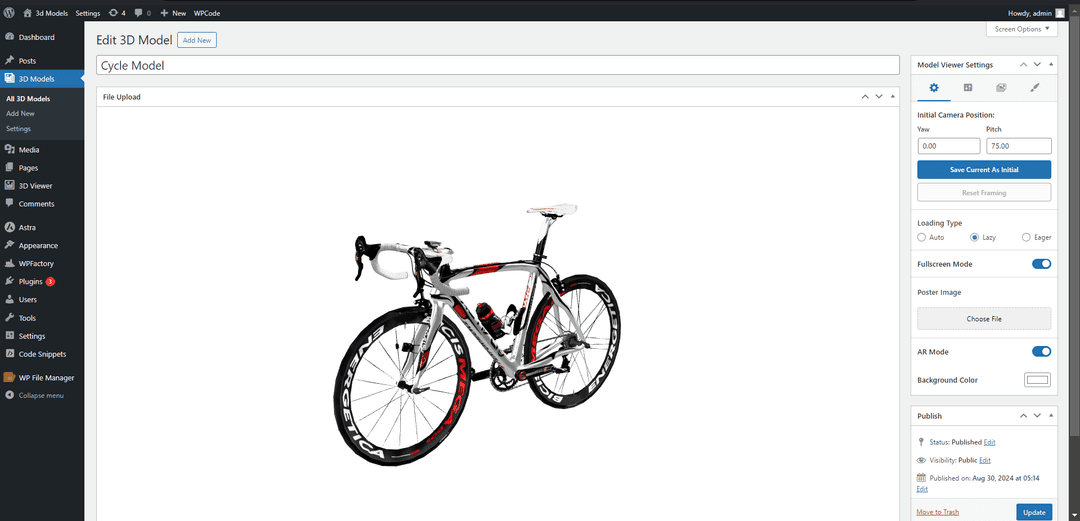
You can change settings according to your preferences in Model Viewer Settings menu on the right side. After necessary changes, it can be published.
Info
If you are using formats like: fbx, dae, obj, blend, 3ds, etc; consider exporting your model into GLB or GlTF format, as other formats are not supported.
Shortcode
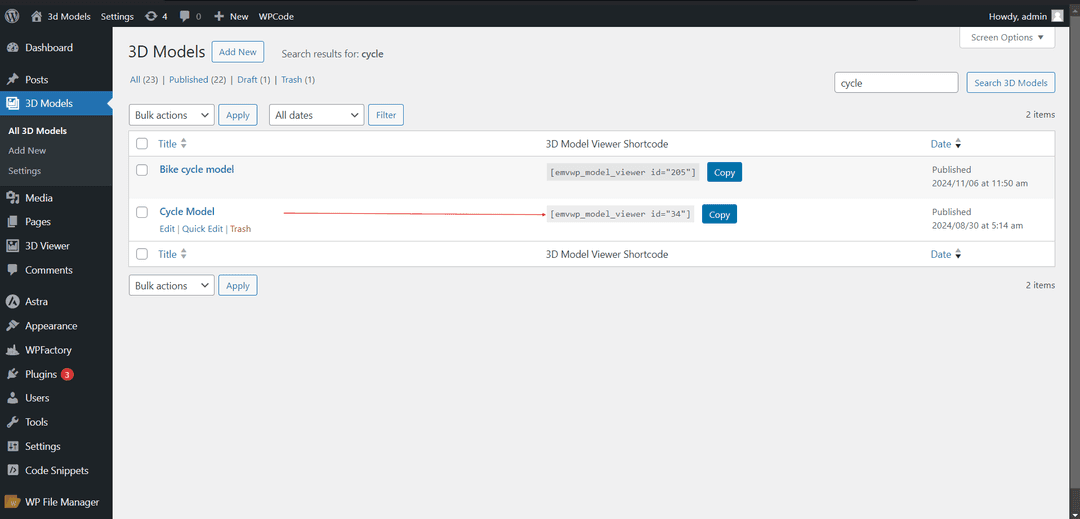
After publishing your 3D model, you can get its Shortcode from list of models, as shown in below image. you can copy the code by clicking Copy button.
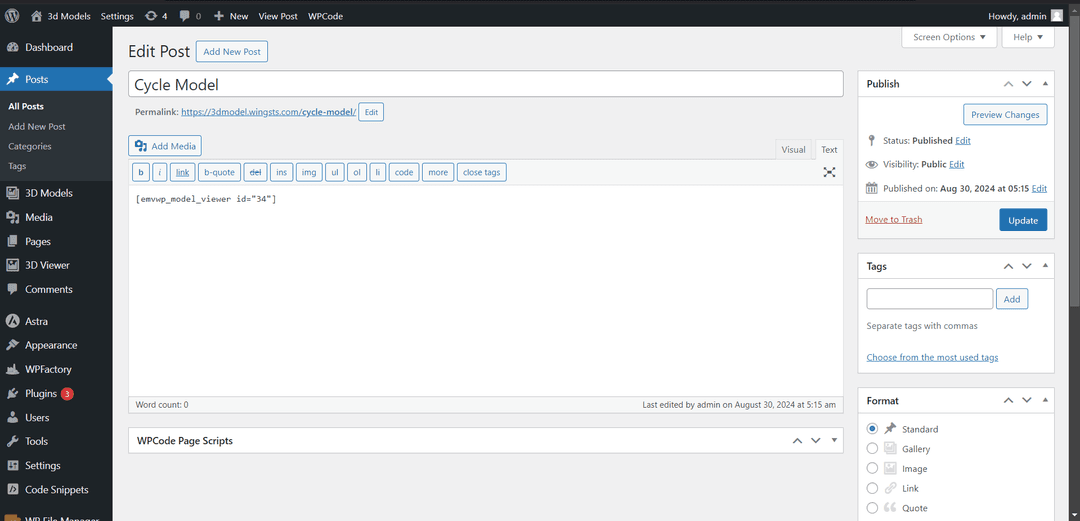
Now, you can paste this code anywhere on your wordpress page. below given is image showing usage of this shortcode. this shortcode will render your 3D model in your post.
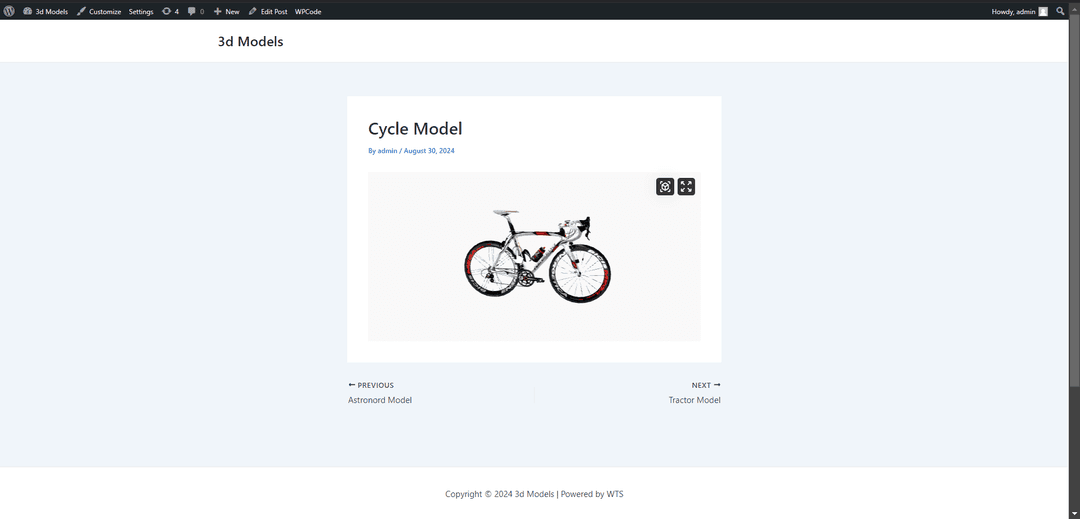
You will see our 3D model is being rendered on newly created post as soon as it is published, as shown in below image.
📖 API Reference
Model Viewer Settings are important to consider in order to make changes to how your model looks and overall look and feel. Sometimes, just a final touch gives whole different and better effect to your 3D scene, so it's recommended you check this at least once.
Model Viewer Settings menu is given on top right side, as shown in illustration below.
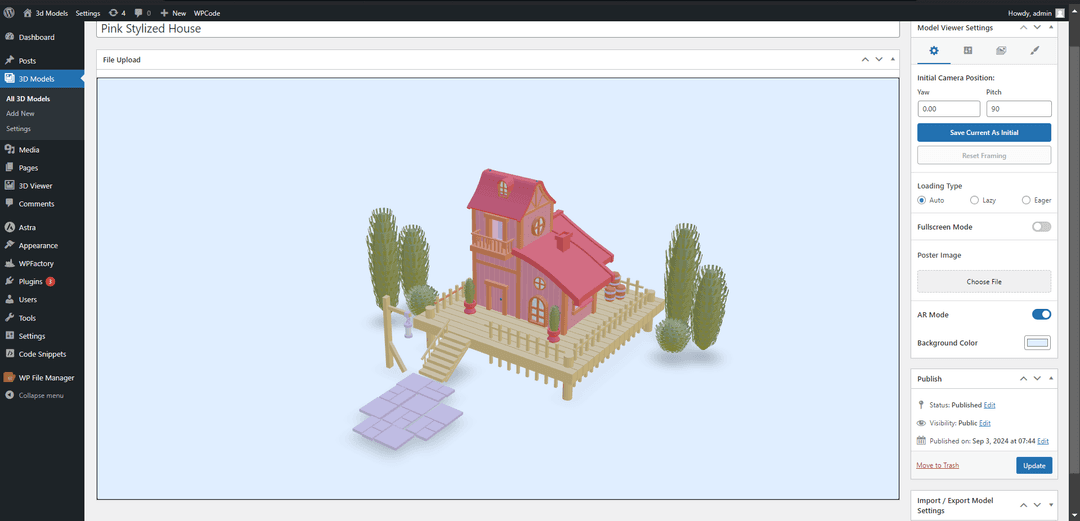
Model Viewer Settings menu has 4 tabs, each having group of related settings. You can update settings and check it live in preview. When you feel like you have done all settings properly, Click on Update button on Publish menu below it. Now, let's check each options in detail.
Initial Camera Position
There are mainly 2 parameters in 'Initial Camera position' option, which is pitch and yaw. Let's see what exactly do they mean and how would it affect initial impression of your 3D scene.
In 3D space, pitch and yaw refer to the two rotational movements of an object around specific axes:
- Pitch
- Pitch is the rotation around the lateral axis (also called the pitch axis), which runs from side to side (left to right).
- A positive pitch typically refers to the object rotating upward (nose up, if you think of an airplane), while a negative pitch refers to the object rotating downward (nose down).
- In simpler terms, pitch is the up-and-down movement of an object.
- Yaw
- Yaw is the rotation around the vertical axis (also called the yaw axis), which runs from top to bottom.
- A positive yaw typically refers to a turn to the right, and a negative yaw refers to a turn to the left.
- Yaw affects the direction the front of the object is pointing, like turning your head left or right.
You can rotate camera with dragging in model space. When you have found better camera angle, be sure to click Save Current as Initial, in order to save initial camera position as current scene.
Loading Type
There are 3 options in Loading Type option, they are: Auto, Lazy and Eager. As their names suggest, it means how model should load, whether lazy or eager, choose the option based on your preference and use case.
Info
Auto is default option in Loading Type, it is recommended. this will load model according to network speed of the client. use Eager only when you are confident that won't affect webpage performance and loading time of page.
Fullscreen Mode
Should model be shown in fullscreen mode by default? this switch does exactly this. It specifies whether model should be shown in fullscreen when page is load.
Poster Image
Upload poster image, or choose from media library, so that it doesn't show empty section on page while loading model initially when user visit your page. instead, user can understand that model is being loaded.
Info
model loading time depends on how detailed your model is and detailed textures may take long to load as it fetches model on browser from network, slow network may cause much time to load and may affect performance on mobile devices. make sure your model is optimized
AR Mode
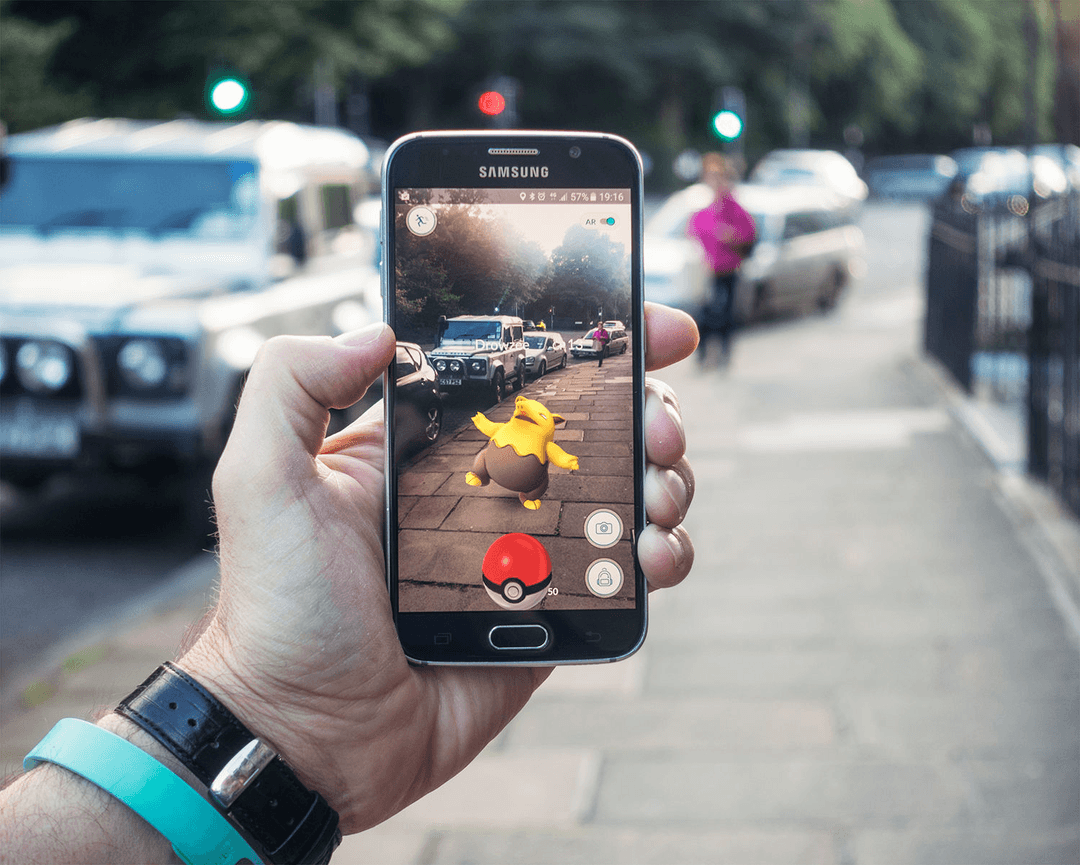
Augmented reality (AR) is a technology that adds digital information to the real world to enhance the user's experience. you can use your phone's camera to project an image of an item onto your floor to see how it would fit in your space. Check this option if you want this model to show in augmented reality. by default, this option is off.
Where it's used?
AR is used in many applications, including:
- Shopping: AR can help you visualize how furniture would look in your home before you buy it.
- Gaming: AR can make gaming experiences more realistic by allowing you to see digital characters and elements in your room.
- Social media: AR can be used to add filters to your photos, like bunny ears or changing the scenery.
- Enterprise and industrial applications: AR head-mounted display devices, like the Microsoft HoloLens 2, can help workers in these areas.
Info
AR mode needs device with AR support, so it mostly supports on mobile devices, while computers do not support Augmented Reality.
Background Color
Set custom background color for 3D container. Change default white background to one which suites your 3D model the most.
Auto Rotate
Auto rotate makes camera rotate around model in horizontal axis. Check this switch if you want your model to rotate in clock-wise(left-to-right) axis. this makes seeing model easy for user.
Moving Controls
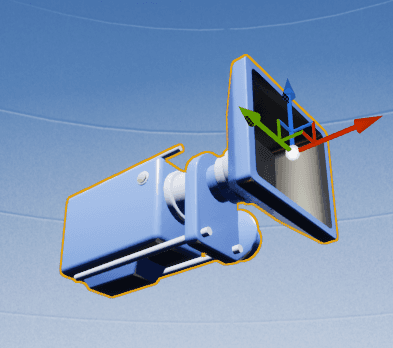
This option allows user to control zoom and rotation of model in 3D space using simple mouse controls. These controls can offer better user experience, as user can control model view with their mouse and touch controls in mobile devices with touch screen.
Customize Limits
While keeping moving controls on, users can rotate camera vertically and horizontally and zoom model as much as limits are set. default values may not be preferable for each 3D model in case there may be need to limit controls with custom value to limit camera transforms.
Yaw Limits
yaw can be referred as horizontal axis for camera rotation. In this case, we can limit clock-wise limit and counter clock-wise limit as to limit camera to look at model in left-right axis.
Pitch Limits
pitch can be referred as vertical axis for camera rotation. In this case, we can limit top-down limit and bottom-up limit as to limit camera to look at model in top-bottom axis.
Minimum Zoom
minimum value for camera zoom to limit camera to zoom at model object, such that camera does not overlap with or pass through model itself.
Environment Image
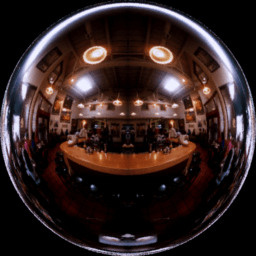
Environment Image is used in 3D space for more immersive user experience, which assigns an hdr image to set lighting and reflections of the scene according to image you select. you can choose from default options: None, Neutral, Legacy, Music Hall and Pillars or alternatively, choose image of your choice.
You can choose custom image from media library or upload the image from your device. environment image can be used to make model look like it is put in particular environment to match with image itself.
Environment as Skybox
This option should be kept on, only when you want to show image as environment as background of 3D scene. this option can change overall look and feel of your 3D scene and it can make model fit in virtual environment. below given is an example of how it changes scene from default
Before
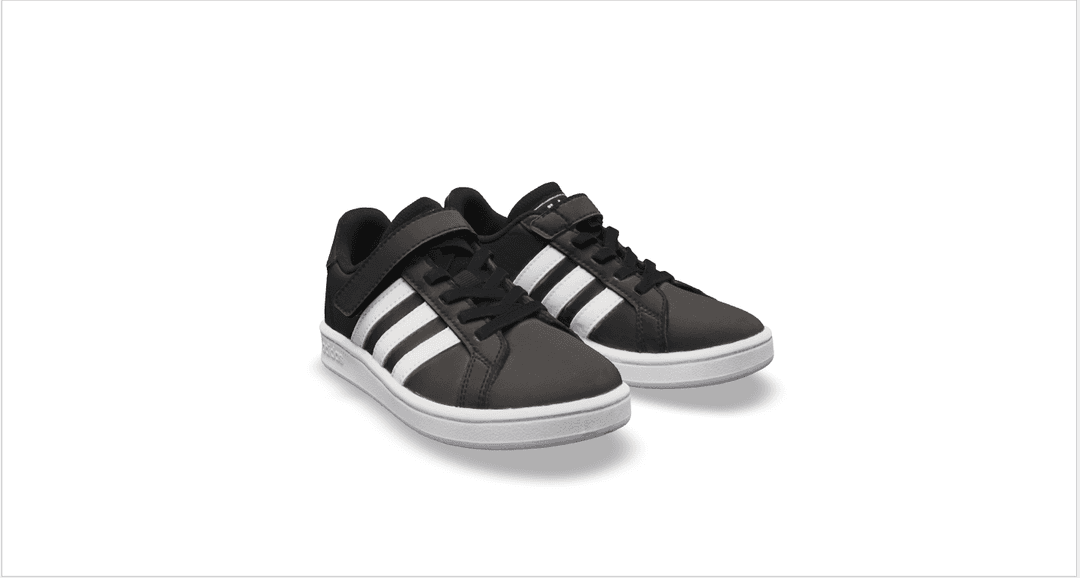
After

Exposure
Exposure is an image effect which is used to handle lightness in media like photos, videos as well as in 3D scene. In this case, if we some dark environment, 3D model needs to look dark likewise for in light environment so it blends into scene properly.
Shadow Intensity
3D model can seem to be far than ground and in some scenes, brightness or lightness of the environment can affect shadow intensity in real life. we need to set shadow intensity in order to make 3D model have perfect shadows according to various factors.
Shadow intensity might affect scene if set incorrect, therefore it is preferable to set proper value for this option, as it can change overall effect of 3D scene.
Shadow Softness
In some cases model needs to cast soft shadows and might need to cast sharp shadows according to external factors like how far model is from ground, intensity of lighting and exposure in environment, shape of model and few others.
In order to improve user experience and make 3D scene visual realistic, It is recommended to find and set correct value according to scene and 3D object.
Zoom Disable
Camera zoom may need to be disabled in some case where model does not need to zoom, for example model is scaled differently either length or width so it may turn out there's no accurate zoom limit value. In such cases, it might be viable to disable zoom.
Tonemapping
Tone mapping is a technique used in image processing and computer graphics to map one set of colors to another to approximate the appearance of high-dynamic-range images in a medium that has a more limited dynamic range.
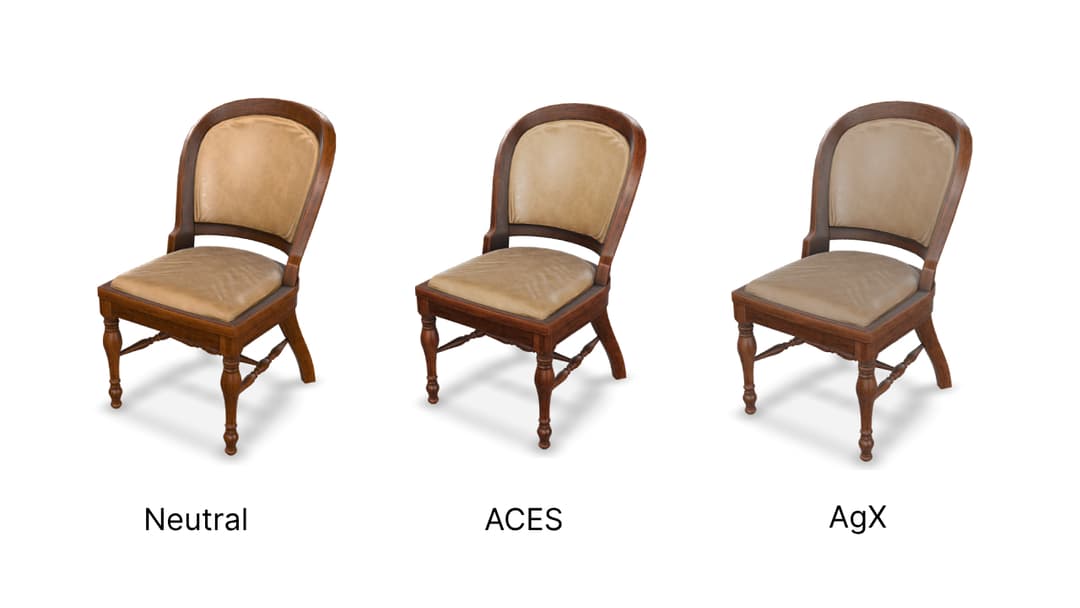
As shown in above image, we can use tone mapping and get different effect in our 3D model, you can choose any from available options: Neutral, ACES and AgX. default one is Neutral. Choose effect from mentioned, which fits to your requirement.